
PDFs are everywhere. Contracts, application forms, work reports, pitch decks, invoices, and training manuals all travel in PDF form because they look polished and consistent. The only downside is that when you need to change anything, the file can feel stubborn.
If you have ever had to update one sentence in a PDF five minutes before sending it, you already understand the value of online editing. With the right approach, you can make quick edits, add signatures, and share professional results without downloading heavy software.
This article focuses on practical tips that help you work faster and avoid the typical mistakes that make PDFs look messy.
When online PDF editing is the best option
Online editing is especially helpful when:
You need to work from a borrowed or shared computer
You are switching between a laptop and phone
You only need occasional edits
You want quick signing and sharing
You want page tools like merge and split without installing anything
If you edit PDFs all day long, desktop software may still be useful. But for most people, online tools cover the majority of tasks.
Start by identifying what kind of PDF you have
Not all PDFs behave the same. This matters a lot.
Text based PDF
You can select the text with your cursor. These are easier for direct editing and searching.
Scanned PDF
It is essentially an image. You cannot select text unless OCR is used. Many people waste time trying to click and edit scanned content without realizing the limitation.
Hybrid PDF
Some pages are text based, some are scanned. This is common in multi page documents assembled from different sources.
Once you identify the type, you can decide whether you need OCR, annotations, or direct edits.
Pro tip: Use overlays for clean corrections
Many online editors work best with overlays. That means you add elements on top of the PDF rather than rewriting the underlying content.
Here is why overlays are useful:
They preserve the original layout
They are less likely to break spacing
They are easier to adjust visually
They work even when text is not directly editable
If you need to replace a name or a number in a scanned PDF, overlays are often the simplest solution.
The most useful features to master
Text boxes
Use text boxes for small corrections and added notes. Match font size and alignment. Zoom in so you can place it precisely.
Highlight and underline
These are perfect for feedback and reviews. When you highlight selectively, your reviewer can understand changes faster.
Shapes
Shapes help you cover old content, create callouts, or visually guide attention. A white filled rectangle is a classic trick to hide a typo before placing corrected text on top.
Signatures and initials
Signatures should look intentional. Keep them aligned and consistent across pages. Add the date if required.
Page tools
Reordering pages, deleting blank pages, and rotating scanned pages are quick wins. Many PDFs look unprofessional simply because the pages are out of order or sideways.
If you frequently handle multiple PDF tasks beyond editing, all in one web tools can simplify your workflow by keeping conversions, compression, merging, and splitting in the same environment.
If your main goal is browser based editing, a quick online document editor will help you add text, annotations, and signatures smoothly.
See also: Kitchen Tech on a Budget: Best Low-Cost Software for Home Cooks
How to edit without making the PDF look patched together
The biggest giveaway of amateur PDF editing is inconsistent formatting. Here is how to avoid it:
Use one font size style across similar edits
Align text boxes with existing baselines
Avoid bright colors unless it is a review copy
Keep margins consistent
Do a final pass at 100 percent zoom to simulate what others will see
Also, be careful with copy paste. Copying text from Word or a website may bring unexpected spacing or symbols. If your text looks odd, type it manually.
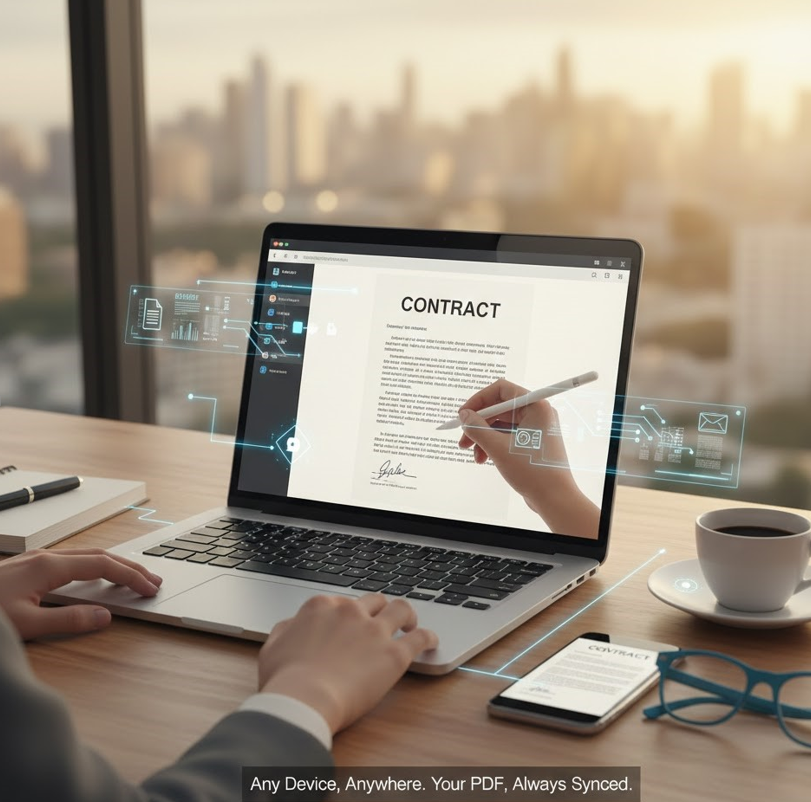
A realistic workflow for contracts and agreements
Let us say you need to finalize a contract.
Step 1 Confirm you have the correct version
Step 2 Add missing details using text boxes
Step 3 Highlight changes for internal review
Step 4 Add initials on key pages
Step 5 Add full signature on the final page
Step 6 Export and re open the file to confirm everything looks correct
Step 7 Send the final PDF and store it in your records
This workflow is easy to repeat and helps avoid missed fields.
Forms: how to fill them quickly and correctly
For PDF forms, the best approach is:
Check if the form has fillable fields
If yes, use the fields rather than text boxes
If no, use text boxes and align them carefully
Use check marks for checkboxes and keep them consistent
Save a copy with a clear name and date
If you fill forms regularly, create a habit of saving a blank template version. Then save a new completed copy each time.
Reduce file size without ruining clarity
Large PDFs are common when they contain images or scans. Compression can help, but do it strategically.
Compress after editing so you do not lose detail before you finish
Use moderate compression for documents that include signatures and small text
Test readability by zooming into fine print after compressing
If the PDF will be printed, avoid heavy compression. What looks fine on screen may blur on paper.
Collaboration tips for teams
Online PDF workflows are great for teamwork. To keep things smooth:
Use consistent naming conventions
Keep one person responsible for final export
Avoid multiple people editing at the same time unless the tool supports collaboration
Track versions using dates or revision numbers
A PDF can become confusing quickly if several copies float around with slightly different edits.
Final thoughts
Learning to edit PDFs online is not just about knowing which button to click. It is about using a repeatable method that keeps your documents looking professional. When you master overlays, page management, signatures, and final checks, you will move faster and make fewer mistakes.
For the smoothest experience, combine all in one web tools for file handling with a quick online document editor for clean edits and signing.